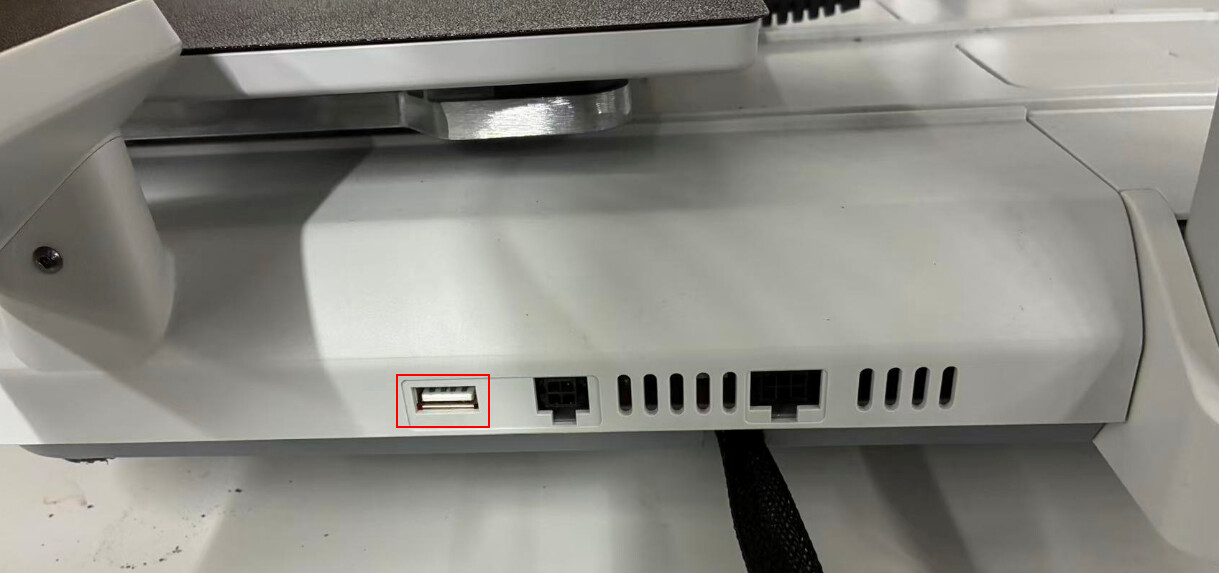
Reasons listed in order of severity:
- The file is not a
.gcodefile, has Cyrillic/special characters in its name, or is located too deep within folders. - The USB flash drive is large (>64 GB) or formatted incorrectly. It should be FAT32 with a 32 KB cluster size.
- The USB port or printer board is faulty (verified with a known working flash drive).
Troubleshooting Steps:
- Check the file extension – it must be
.gcode, not.stl/.3mf`. - Rename the file using Latin characters/numbers, ensuring it’s not buried in more than two levels of folders.
- If only one file is unreadable, restart the printer and/or reslice/regenerate the gcode.
- Check the flash drive’s capacity – ideally ≤16 GB, up to 64 GB is acceptable.
- Reformat the flash drive: FAT32, 32 KB cluster size.
- Test with a different known-working flash drive in the same port (on the right side of the printer body).
- If even a working flash drive isn’t recognized, there’s a hardware issue – USB port/board failure; service is required.
In 90% of cases, the problem is resolved in steps 1–5. Before going to a service center, always test with a different flash drive—this immediately rules out whether the flash drive or the printer’s port is at fault.
Detailed Explanation of Each Point
File Issues
- File Format. The Kobra X only understands files with the
.gcodeextension. If you copied the original model (e.g.,.stl) to the flash drive without slicing it—the printer simply won’t see it, which is expected. - File Name and Path. The printer struggles with “exotic” characters in file names – Cyrillic, special symbols, and emojis are best avoided; use Latin letters and numbers for naming. Also, don’t bury the file deep within folders—a maximum of two levels of nesting is recommended, otherwise it may not appear in the list.
- Isolated File Corruption. If only one specific gcode file cannot be read while others are visible, try restarting the printer or reslicing the model (sometimes a file can save with corruption).
Flash Drive Issues
- Memory Capacity. Officially supported capacity is up to 64 GB, but it’s best not to risk it: for stable operation and compatibility, use a flash drive up to 16 GB. Larger drives are more prone to recognition errors.
- File System. The flash drive must be formatted as FAT32 with a cluster size of 32 KB. NTFS/exFAT or an incorrect cluster size is a common cause of the “invisible” flash drive.
How to format correctly in Windows:
- Insert the flash drive, open “This PC” → right-click on the flash drive → “Format”.
- File system: FAT32.
- Cluster size: 32 kilobytes.
- Uncheck “Quick Format” if you suspect sector corruption; otherwise, a quick format is sufficient.
- Copy a sliced
.gcodefile with a short English name to the root or first level of folders.
Hardware Issues (Port or Board)
If the file is correct, the flash drive is formatted correctly, and the capacity is within 16 GB—and it still isn’t read, then check the hardware.
- Take a known-working flash drive (preferably up to 16 GB, FAT32) and insert it into the USB port on the Kobra X – it’s located on the right side of the printer body.
- If the new flash drive is recognized—the problem was with the old flash drive; it’s best not to use it again.
- If even a new flash drive isn’t recognized—there is likely a fault in the USB port on the motherboard. This issue cannot be resolved through software means and requires board replacement (the motherboard is replaced under warranty via Anycubic service – open a ticket describing all steps already taken).